

For ACES color pipelines using OCIO v2.1, the studio-config-v1.0.0_aces-v1.3_ocio-v2.1.ocio config is available as a standard configuration.
However, because this config is designed to cover a wide range of use cases, it includes a large number of display and color space options. This can make it difficult for users to identify the appropriate settings for a specific production and may increase the risk of configuration or selection errors.
OCIO v2 Is More Powerful—But Also More Complex
An OCIO config is a text file written in YAML format. With OCIO v2, most ACES transforms are now implemented natively within the OCIO library, eliminating the need for many external LUT files. The internal architecture has also been redesigned, allowing more flexible and sophisticated color pipelines to be defined directly within the config.
At the same time, the config specification has expanded significantly and become more complex. As a result, understanding and editing an OCIO v2 config requires a much deeper level of technical knowledge than it did with OCIO v1.
Simplify the Config by Removing Unnecessary Options
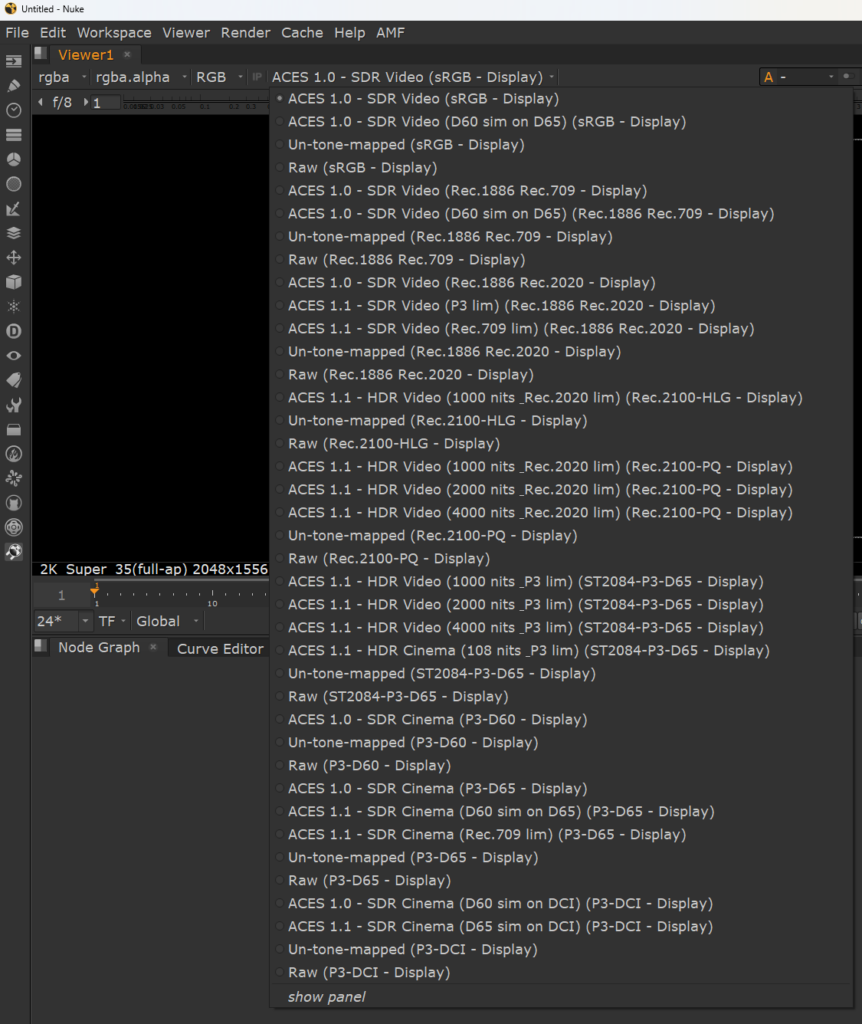
The standard studio-config-v1.0.0_aces-v1.3_ocio-v2.1.ocio includes a very broad range of color spaces and transforms intended to cover many different production scenarios. As a result, the config is extremely comprehensive, and when used as-is, finding the appropriate setting for a specific workflow can be challenging.
A good first step is therefore to simplify the config by removing unnecessary options and keeping only the settings required for the production.
For example, let’s narrow the display settings down to only those needed for a Netflix production.
First, here is the default set of display options. Finding the correct setting from this list is not exactly straightforward.
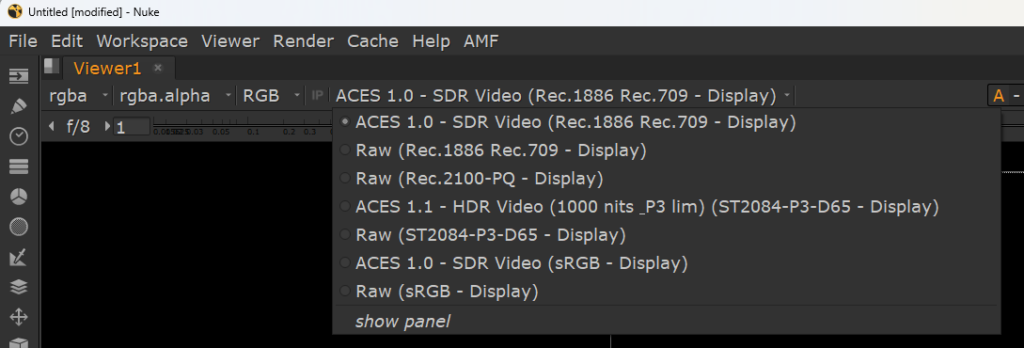
Now, here are the display settings in the streamlined config.
There are still several options to choose from, but it is much easier to identify the appropriate setting for your workflow.
Try the OCIO Config Trimmer Tool
To help you experience the benefits of a streamlined config, we created a simple tool called OCIO Config Trimmer.
Starting with the standard ACES 1.3 config, simply select the settings you plan to use. The tool will generate a streamlined config containing only those options, which you can then save locally.
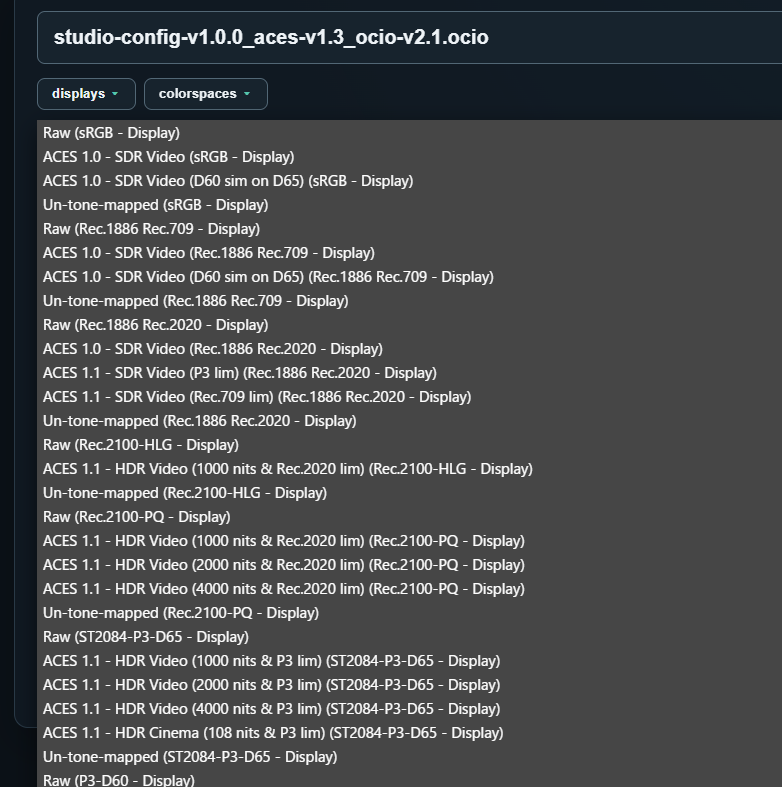
In the default state, clicking Displays reveals a long list of display options, as shown below—the same extensive list you would see in Nuke.
Click Start Trim Wizard to begin configuring your trimmed OCIO config.

Here is an example of the Trim Wizard. By default, only the settings typically required for Netflix productions are selected.
You can simply proceed through the wizard with these default selections and save the resulting config file.
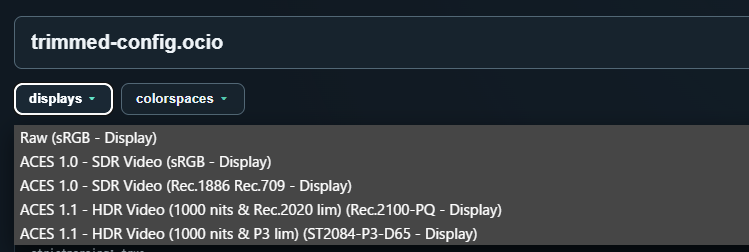
Here is the final trimmed config loaded into the application. As you can see, the available display options have been significantly reduced, making it much easier to find and select the appropriate setting.
Use It to Validate Custom OCIO Configs
In addition to the built-in ACES 1.3 config, this tool can also work with OCIO configs uploaded by the user.
When a config is uploaded, it is automatically validated using ociocheck, the validation tool provided with OpenColorIO. If any errors are detected, an error message is displayed as shown below.
This tool can be used not only to streamline OCIO configs, but also to validate the syntax of your customized config files.
Taking It a Step Further
This tool focuses solely on streamlining the config—it does not add or modify any color processing.
With further customization, however, an OCIO config can do much more. For example, you can integrate LMTs (Look Modification Transforms) such as CDLs and .cube LUTs, support ACES 2.0 with OCIO 2.1, use HDR viewing transforms on SDR monitors, or implement custom handling for Rec. 709 source material.
The possibilities can be tailored to the specific needs of your production and workflow.
For more advanced OCIO config customization, please contact PixCal Solutions.